
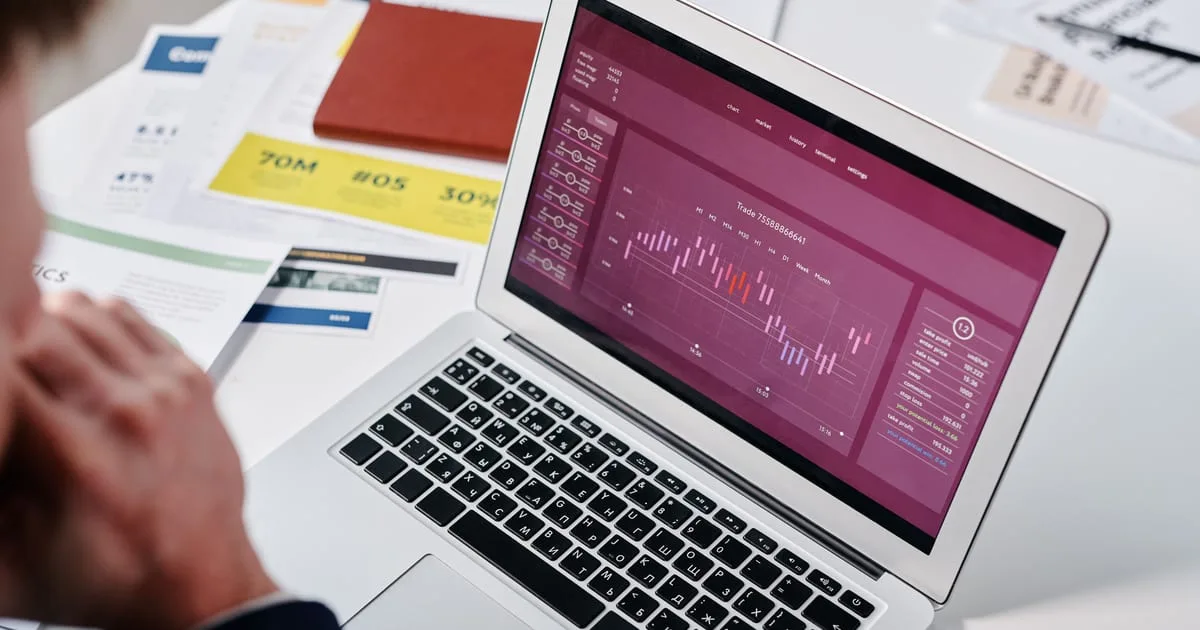
Shopify Rollouts is a tool built into the Shopify admin, under Markets > Rollouts, that lets you schedule changes to your theme, checkout, customer account pages, discounts and catalogs, then decide whether those changes stay, switch off on a set date, or get tested first. To A/B test your store with it, you create an Experiment rollout: Shopify splits visitors between your current store and the changed version and reports which one converts better.
Shopify launched Rollouts on March 31, 2026 for theme changes. Checkout and customer account configurations were added on June 5, the setup screen was redesigned on September 22, and discounts joined on October 2. For a lot of stores, that covers work that used to need a scheduling app, a separate testing app, or someone awake at midnight to publish the sale theme by hand.
How Shopify Rollouts works
Every rollout is a bundle of changes with a schedule and an audience. As per Shopify's Rollouts help guide, you can change your main theme (edit it or swap in another theme), your checkout and customer account pages, your discounts and your market catalogs, alone or together. One rollout holds at most one theme change and one checkout change.
The rollout type decides what happens to those changes:
- A Launch applies the changes permanently at the time you set, with no end date and no automatic undo.
- An Event is temporary. The changes go live for a set window and roll back by themselves when it closes.
- An Experiment splits visitors into a control group, who see your store as it is, and a treatment group, who see the changes, so you can compare the two before you commit.
The types work more like presets than fixed modes. Since the September update, Shopify adjusts the setup to match the timing and traffic share you pick, and any rollout shown to less than 100% of visitors needs both a start and an end date.
One detail saves a lot of theme clutter. When you edit your main theme inside a rollout, Shopify works on an automatic copy, so you can keep editing the live theme while the rollout waits its turn. No more "Copy of Copy of Dawn" sitting in your theme library.
Which Shopify plan do you need for each rollout type?
Rollouts works on the Basic plan and above, so any Basic store can schedule Launches and Events. A/B testing needs more. Shopify's requirements page says a store must be on the Grow plan or higher to run Experiments, and the launch announcement put market-specific targeting on Advanced and Plus.
Some guides published this year say experiments need Advanced. Shopify's help center says Grow, so check that page rather than a third-party summary before you pay for an upgrade.
Owners and administrators can manage rollouts. Other staff need the Markets > Rollouts permission plus the permission for whatever the rollout touches, such as Discounts or Online Store > Themes.
How to schedule a theme change or a timed sale
A four-day Black Friday sale makes a good test case: a sale banner on the theme, a 20% discount code, and everything back to normal at midnight on Monday. In Rollouts, that whole plan is one Event. Create the discount and upload the sale theme first, because a rollout can only pick from things that already exist in your store.
- Go to Markets > Rollouts in your admin and click Create rollout.
- Give it a name such as "Black Friday 2026" and choose Event as the type.
- In the Changes section, click Add changes. Pick Online Store to edit your theme or replace it with the sale theme, add the code under Discounts, then click Apply.
- Under Scheduling, set the start date and time, then the end date. Both run on your store's time zone.
- Leave the audience at 100%, so the sale reaches every visitor along with your ads, listings and product feeds.
At the end time, Shopify rolls the theme back and the discount goes with it. Nobody needs to be online for that. A Launch follows the same steps without an end date, and it deserves more care: Shopify's own warning is that applied changes can't be reverted.
Two limits catch people out. A rollout can hold up to 250 discounts, and any single discount or catalog can sit in only one unended rollout at a time. If your sale code is still attached to an old draft, remove it there before you build the new Event.
How to A/B test your store with Shopify Rollouts
An Experiment uses the same builder, with one difference: part of your traffic sees the change and the rest sees your store as it is today. Shopify starts every Experiment at a 50/50 split over 90 days, and you can change both.
- Create a rollout and choose Experiment as the type.
- Add your changes. To test edits to your current theme, save the rollout first and then edit. To test a different theme, add it to your online store before you begin.
- In the Audience section, set the share of eligible visitors in the test, then click the traffic split to set control against treatment.
- Set a start and an end date. Shopify won't run a partial-traffic rollout without both.
- When you have enough data, end the rollout. Choose Apply changes to keep the treatment, or Roll back changes to drop it. Experiment changes don't stay live on their own.
The report depends on what you tested. Theme experiments show conversion rate over time, bounce rate, reached-checkout rate and add-to-cart rate. Checkout experiments show a single number, checkout conversion rate, which is completed purchases as a share of sessions that reached checkout. Results refresh a few minutes after each visit, and bot traffic is filtered out.
Test one idea at a time. If the treatment has a new hero image, a shorter product page and a different add-to-cart button, a lift tells you something worked but not which part. Traffic sets the pace as well. A store with 1,000 sessions a day on a 50/50 split puts about 500 visitors a day into each group, or 7,000 each after two weeks. At that volume, a bold change like a new product page layout has a fair chance of showing a clear result. A button colour almost never will.
The ad-feed risk most guides skip
Partial-traffic rollouts don't reach your external channels. When a rollout is shown to less than 100% of visitors, Shopify applies it to the online store only, while your ads, listings, product feeds, apps and search results keep the old details. Shopify's guide to rollout reach warns that Google and Meta can delist products or suspend an account over mismatched offers.
That matters most when a test changes what a shopper pays. Run a 50/50 Experiment on an automatic discount, and half your visitors see a price your Shopping ads never mentioned. Our advice is simple: test layout and checkout setup with partial traffic, and treat price changes with more caution. If you do test a discount, keep the test short and watch Google Merchant Center for warnings while it runs.
Pros and cons of Shopify Rollouts
What Rollouts gets right:
- There's no extra app or script to install.
- A sale theme, its discount codes and a new checkout setup can go live in the same minute on one schedule.
- Events switch themselves off, so a sale can't run two days late because someone forgot.
- Gradual releases let you show a new theme to 10% of visitors and fix a broken page while the other 90% still see the old one.
Where it falls short:
- Reporting is thin. Theme tests get four metrics, checkout tests get one, there's no revenue-per-visitor figure, and you can't filter results by device or country.
- The help docs don't explain how statistical significance is shown or how a winner is chosen, so reading the numbers is on you.
- You can't change Liquid templates in a rollout, and vintage themes aren't supported.
- Experiments only run on the Shopify online store. Headless storefronts are out, and analytics leave out headless and POS visitors.
Who should use Shopify Rollouts?
Every store on Basic or above should use it for scheduling. Sales, seasonal themes and product drops on fixed dates belong in Events, and a new theme belongs in a gradual release before it goes to every visitor.
For testing, traffic and the tools you already pay for decide. A store on Grow with steady daily traffic and no testing app should start with Rollouts: one bold change per test, whole weeks, and the winner applied only when the gap holds for the full run. A store already paying for a dedicated testing tool, and using its revenue-per-visitor reports or audience segments, should keep that tool for now and hand its scheduling to Rollouts. Headless brands gain the least, because tests can't reach a custom storefront.
Schedule everything, and test only what your traffic can prove. If you'd like a second opinion on which change to test first, email the Techno Mantra team at info@technomantraa.com.
Frequently asked questions
Rollouts is built into the Shopify admin on the Basic plan and above, so there's no separate app to install. Running A/B test Experiments needs the Grow plan or higher.
No. Basic stores can schedule Launches and Events with Rollouts, but Experiments, Shopify's native A/B tests, need the Grow plan or higher.
Shopify sets a 90-day default, and you can shorten it with the end date. Whatever length you choose, run whole weeks so weekday and weekend shoppers are both counted, and don't stop early because the first few days look good.
Yes. Since October 2, 2026, you can add discounts to a rollout and compare a new offer against your current discount setup. At less than 100% of traffic, the change applies to the online store only, so your ads and feeds won't show it.
No. Theme changes, checkout changes and Experiments apply only to the Shopify online store, and rollout analytics leave out headless and POS visitors.